User Guide
Course Ledger has three tabs — Courses, Bucket list and Trends — and one idea: every course you’ve played, with the story of each round. This guide walks through all of it, screen by screen, and finishes with step-by-step how-tos for the common jobs.
On this page
- 1. Getting started
- 2. The Courses tab
- 3. A course’s page
- 4. Adding & editing a course
- 5. Logging a round
- 6. The import button
- 7. The shoebox import (Pro)
- 8. Importing a spreadsheet
- 9. The bucket list
- 10. Trends & the played map (Pro)
- 11. Export, backup & restore
- 12. Kick Rocks
- 13. Dark mode
- 14. Free & Pro
- 15. How-tos
1. Getting started
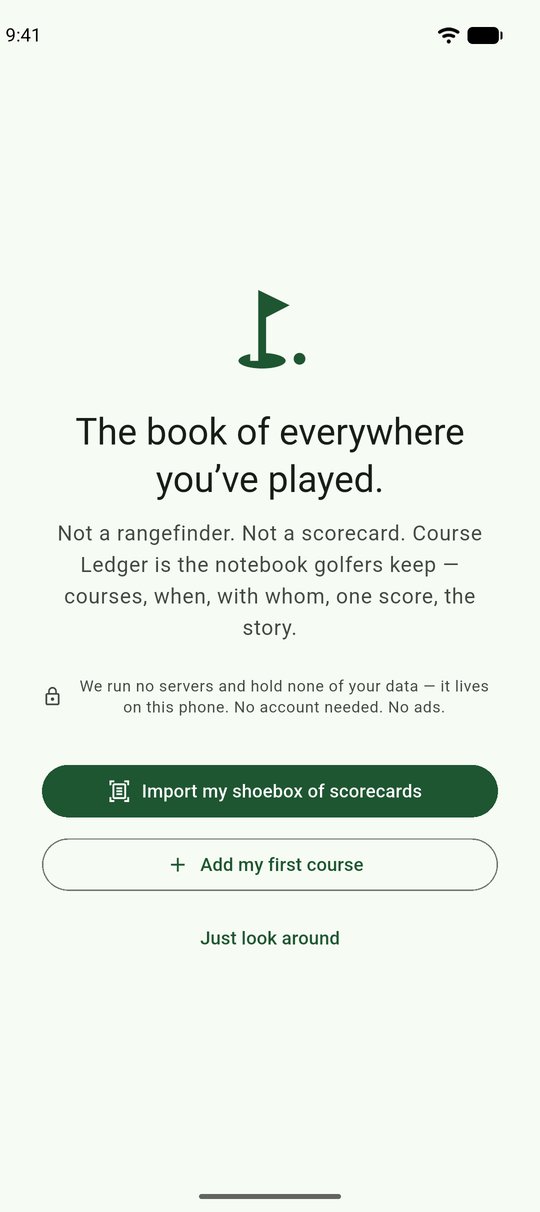
There’s no account to create and nothing to sign in to. The welcome screen appears once and offers three ways in:
- Import my shoebox of scorecards — scan a stack of old paper cards (Pro; see below).
- Add my first course — start fresh with the course you played most recently.
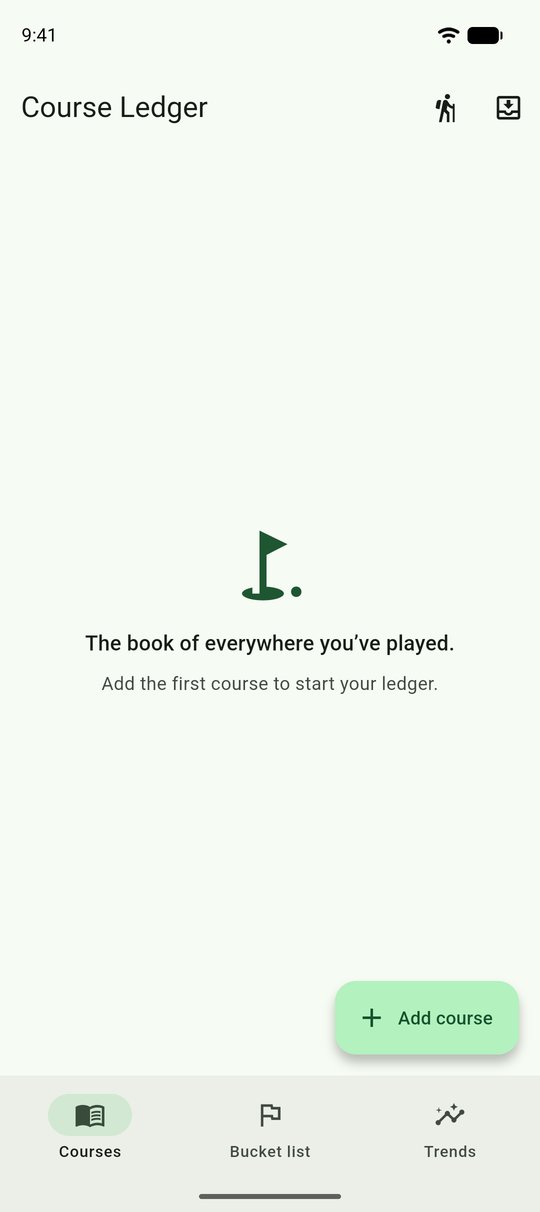
- Just look around — go straight to the empty ledger and come back to it later.
2. The Courses tab
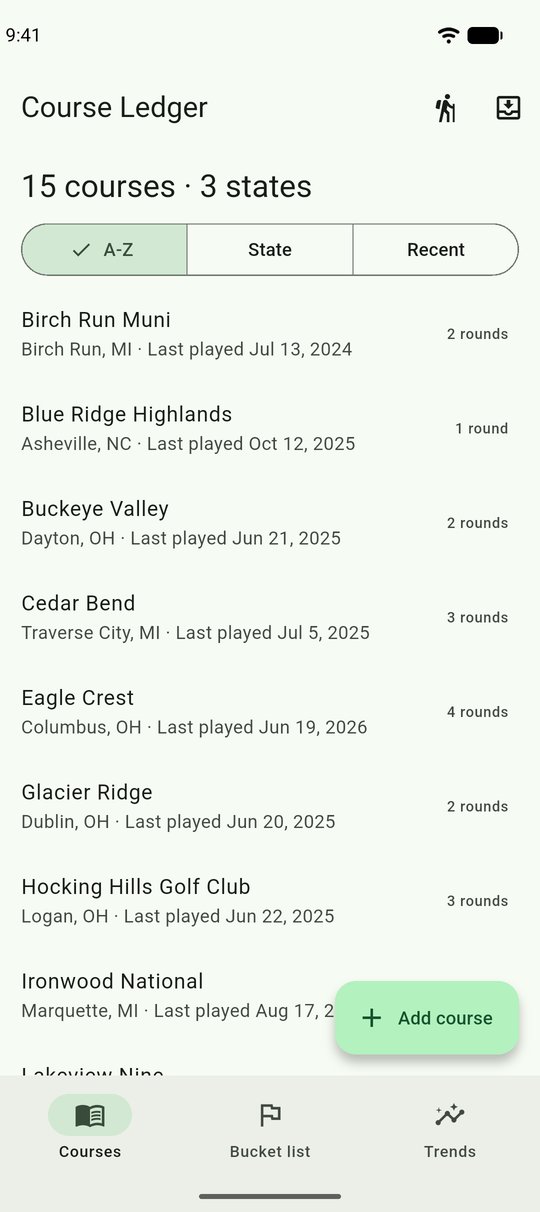
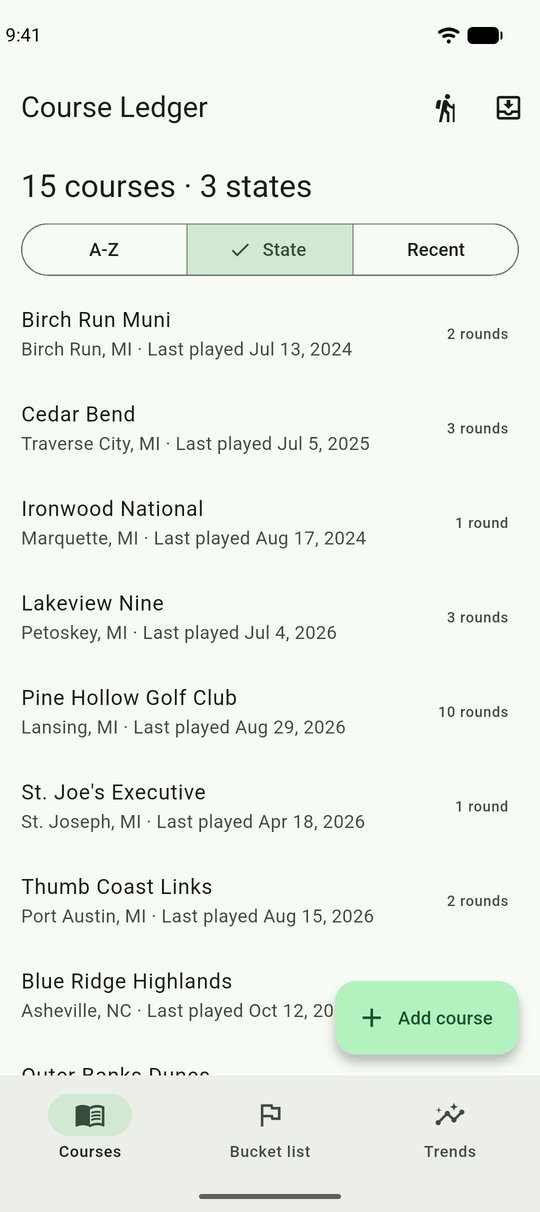
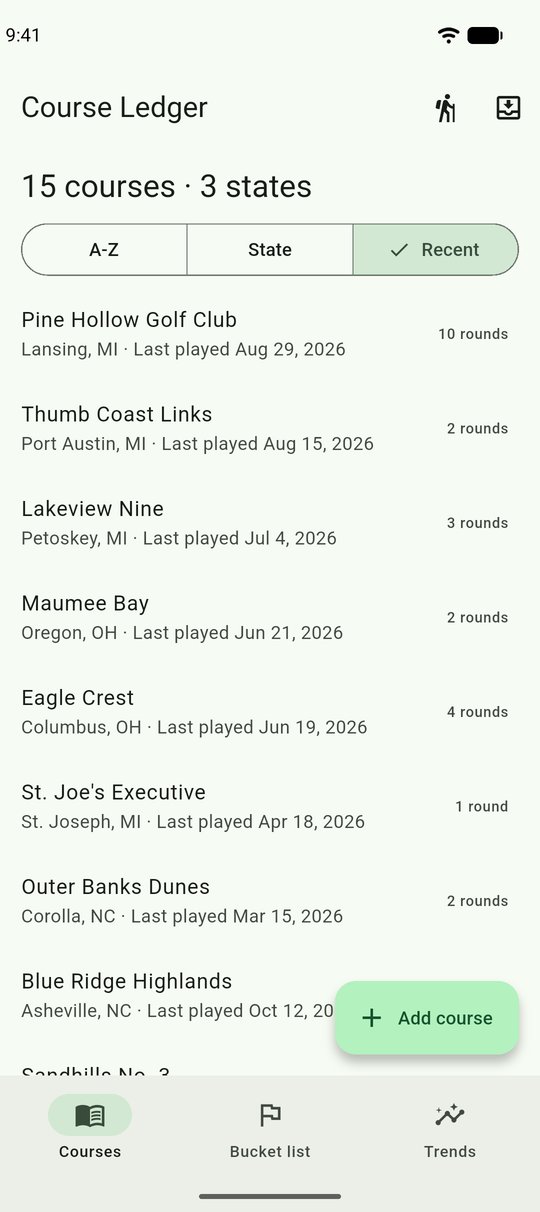
The headline at the top is your count — “15 courses · 3 states”. Below it, switch the list between:
- A–Z — alphabetical by course name.
- State — grouped by state.
- Recent — most recently played first.
Each row shows the town, the last-played date (or “Not played yet”), and how many rounds you’ve logged there. The two icons at the top right are the Kick Rocks switch (only when Kick Rocks is installed) and the import button.
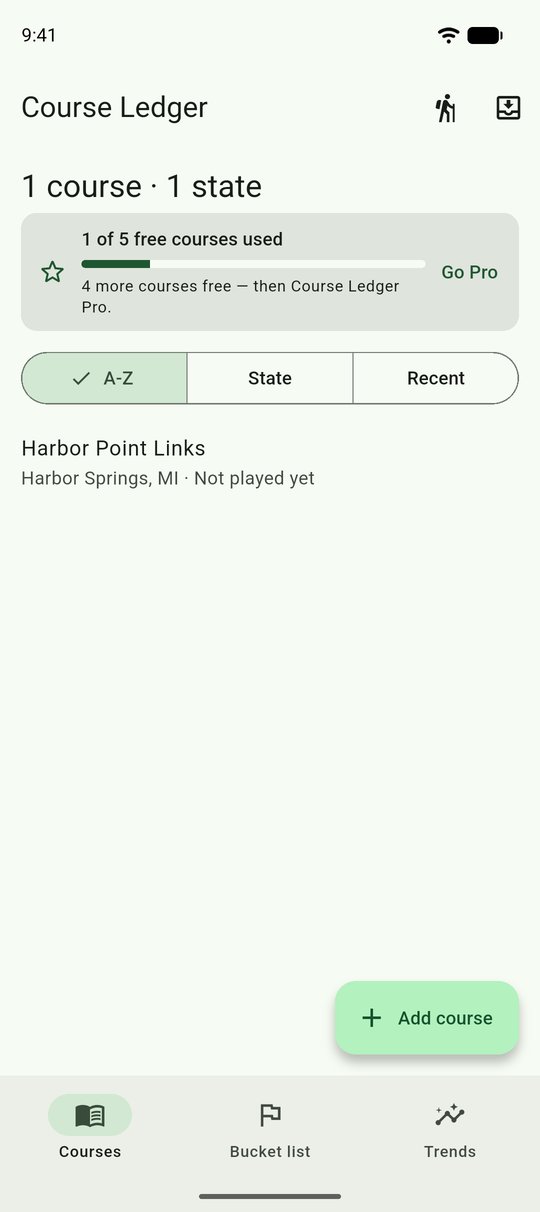
On the free tier, a card under the headline counts your free courses — “1 of 5 free courses used” — with a Go Pro button. It disappears once you have Pro.
3. A course’s page
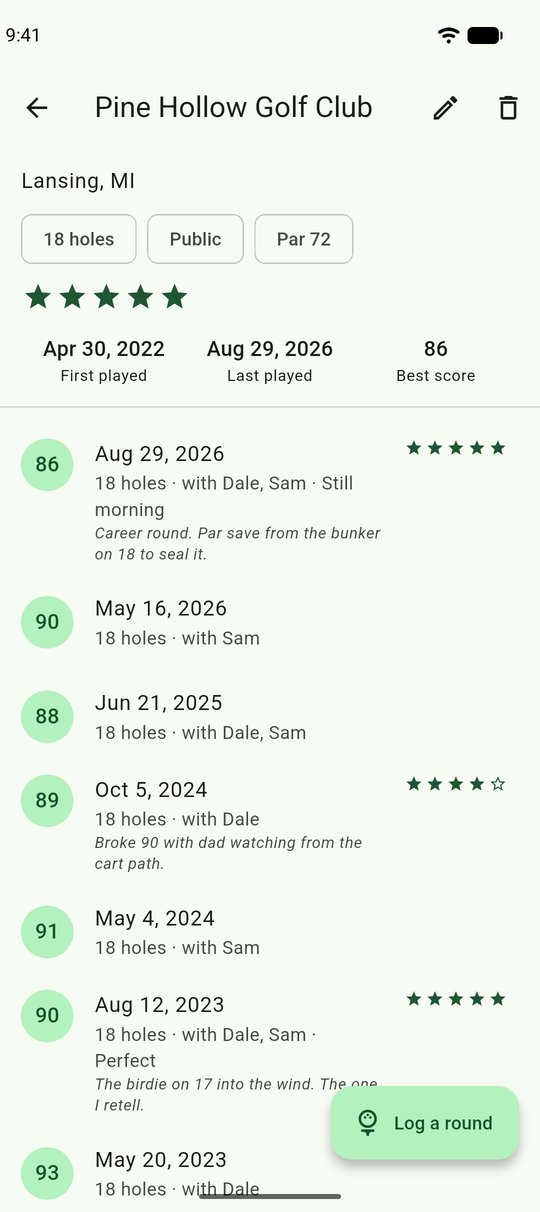
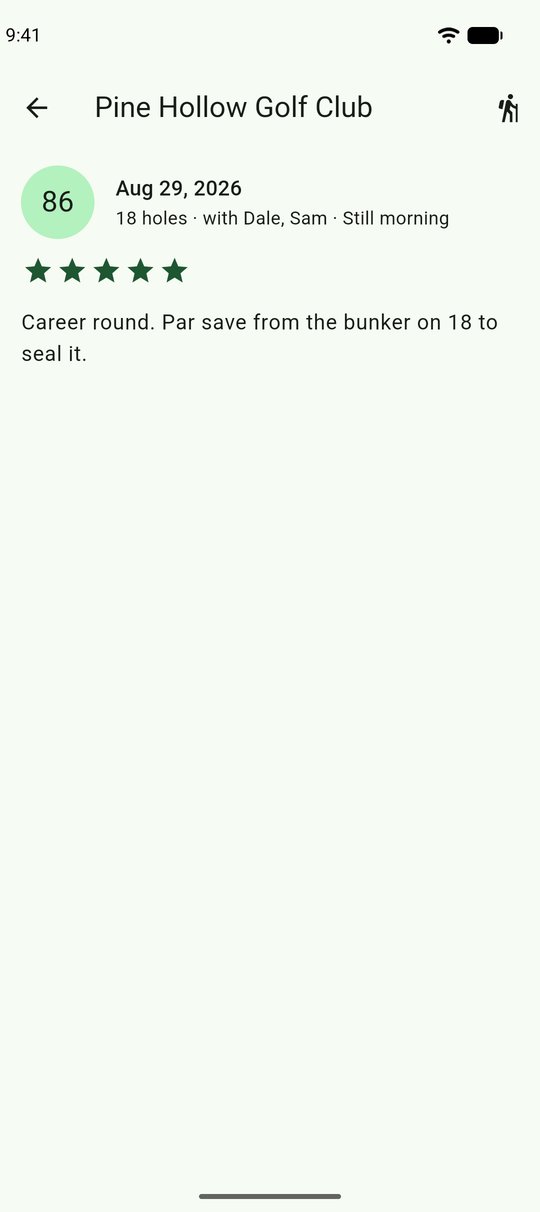
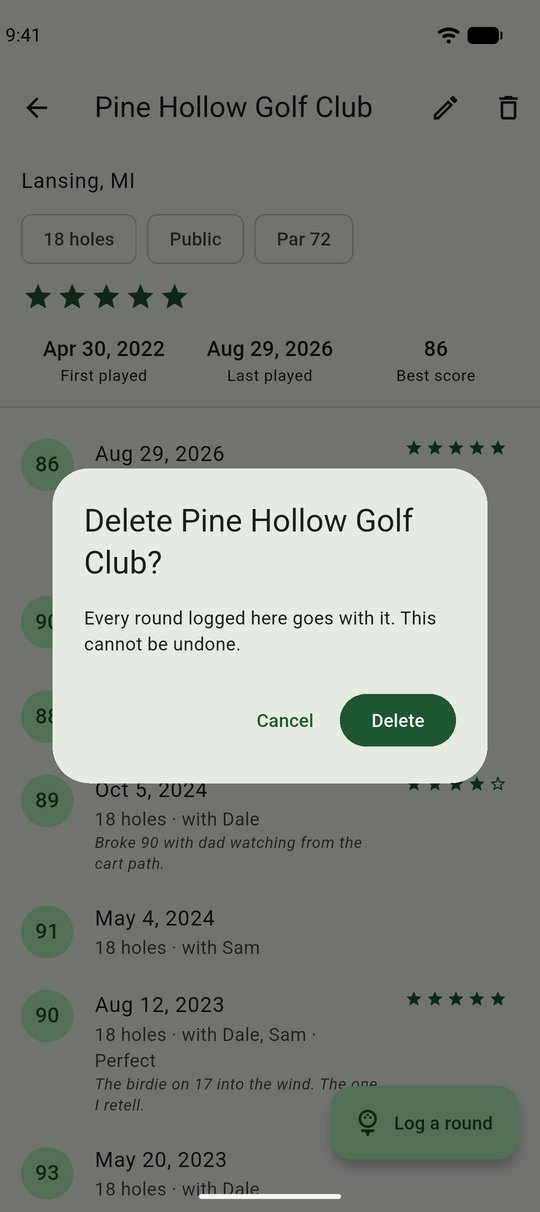
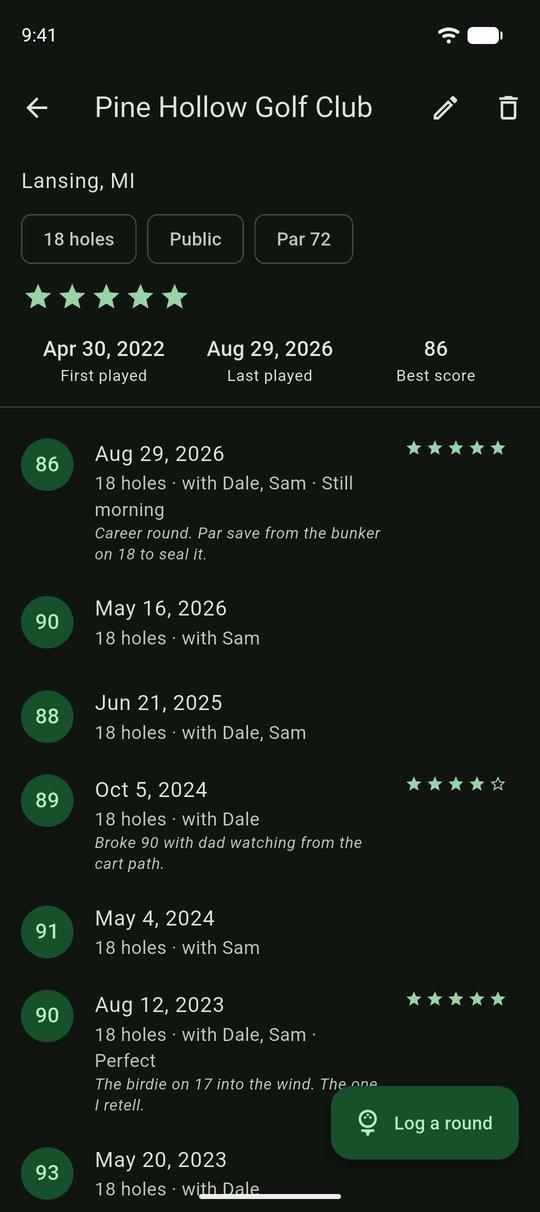
Tap a course to open its page. Up top: the town, holes, kind and par, your rating, and the three numbers that matter — first played, last played and best score. Below that, every round, newest first, with a preview of its story. Tap a round to read the whole thing, with its details, day rating and photos.
4. Adding & editing a course
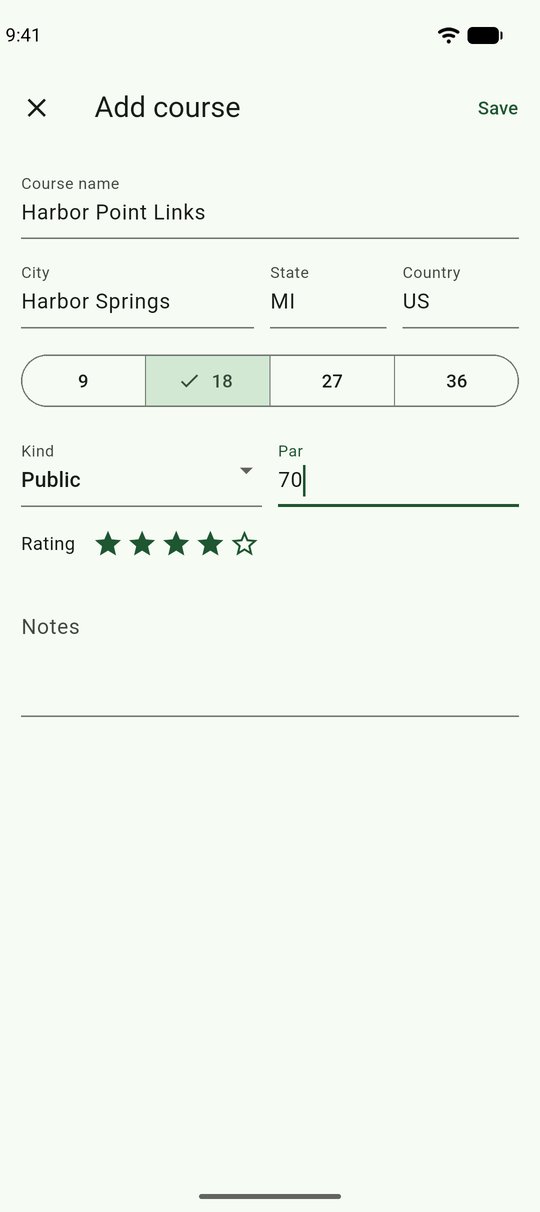
Tap Add course on the Courses tab. Only the course name is required. Everything else is optional and can be changed later:
- City, State and Country (US by default). Type the state as its two-letter code — MI, not “Michigan” — because that’s what fills in the played map.
- Holes — 9, 18, 27 or 36.
- Kind — public, muni, resort, private or executive — and Par.
- Rating — your own one-to-five stars — and Notes.
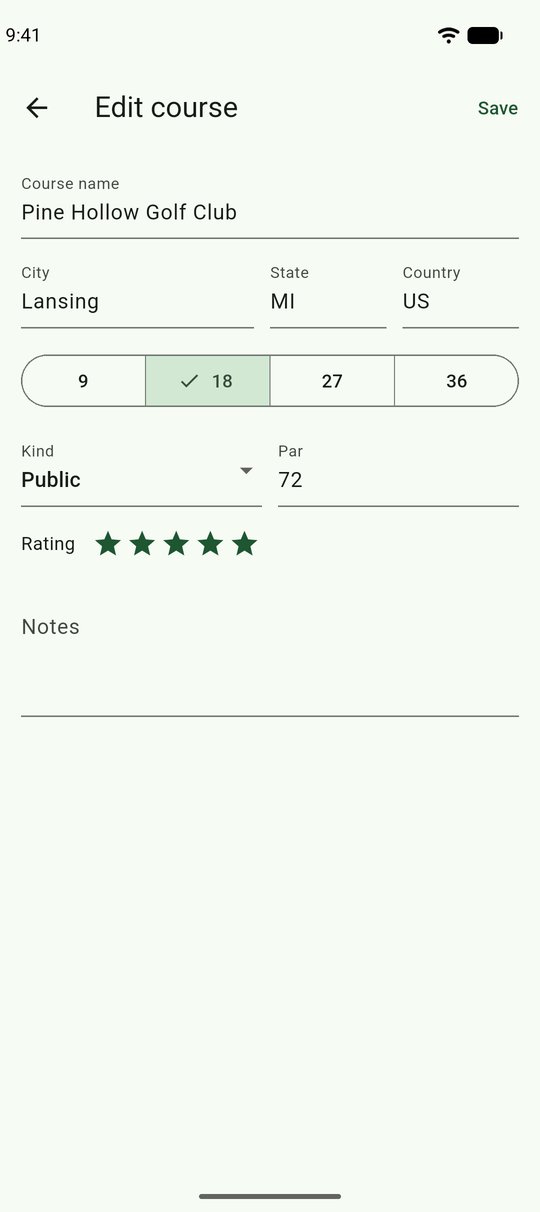
To change a course later, open its page and tap the pencil. The bin deletes the course — and, as the confirmation warns, every round logged there goes with it. There’s no undo.
5. Logging a round
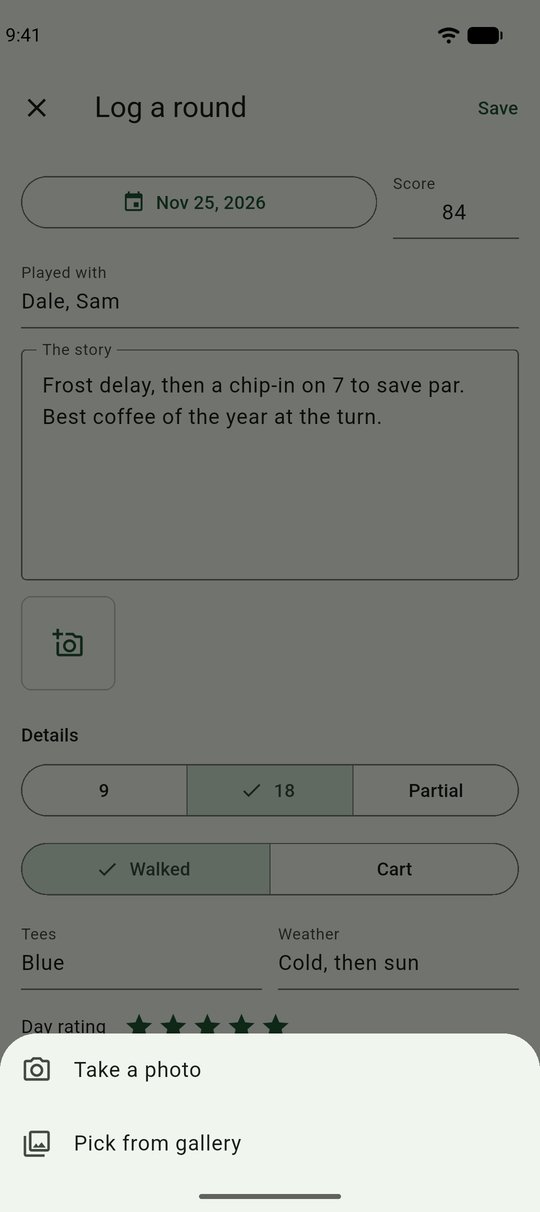
Open a course and tap Log a round:
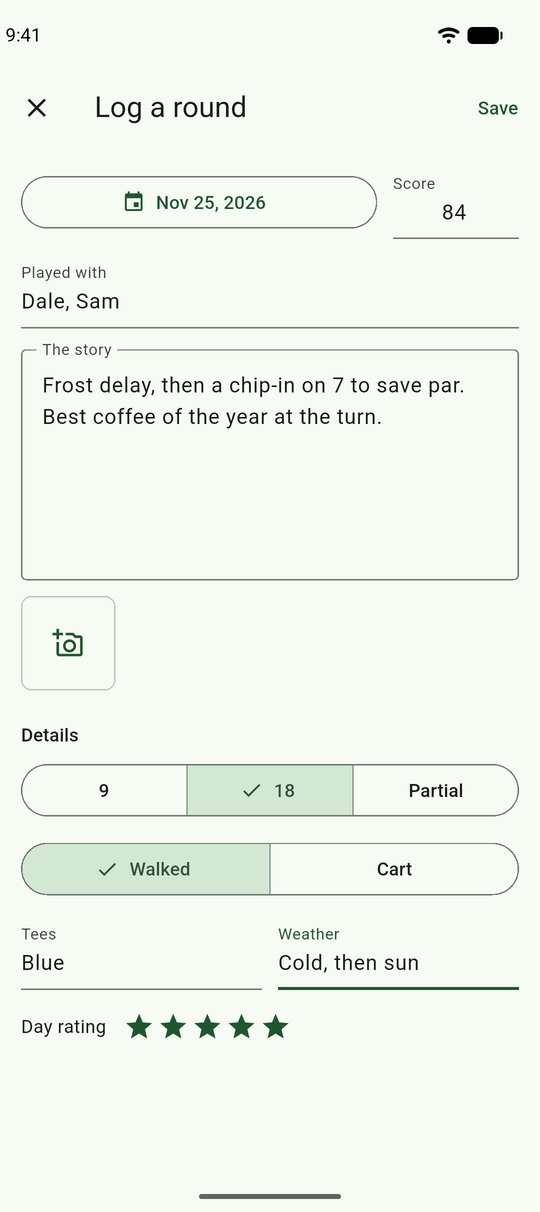
- Date — today by default; tap it to log a round from years ago. The course’s first- and last-played dates follow along.
- Score — optional. One number, the total. This is a ledger, not a scorecard.
- Played with — the people who were there (“Dale, Sam”).
- The story — the shot you’ll retell. The birdie on 17. This is the field the whole app is built around.
- Photos — tap the camera tile to Take a photo or Pick from gallery.
- Details — 9, 18 or a partial round; walked or cart; tees; weather; and a day rating.
Tap Save. The round appears on the course’s page, and if that course was on your bucket list, it’s checked off. The × closes the screen without saving.
In the current version a saved round can’t be edited or deleted on its own — the round’s page is for reading it. Give the date and score a glance before tapping Save.
6. The import button
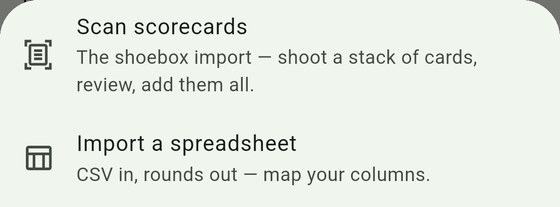
The tray icon at the top right of the Courses tab opens both importers:
7. The shoebox import Pro
For everyone with a drawer full of old scorecards. Choose Scan scorecards:
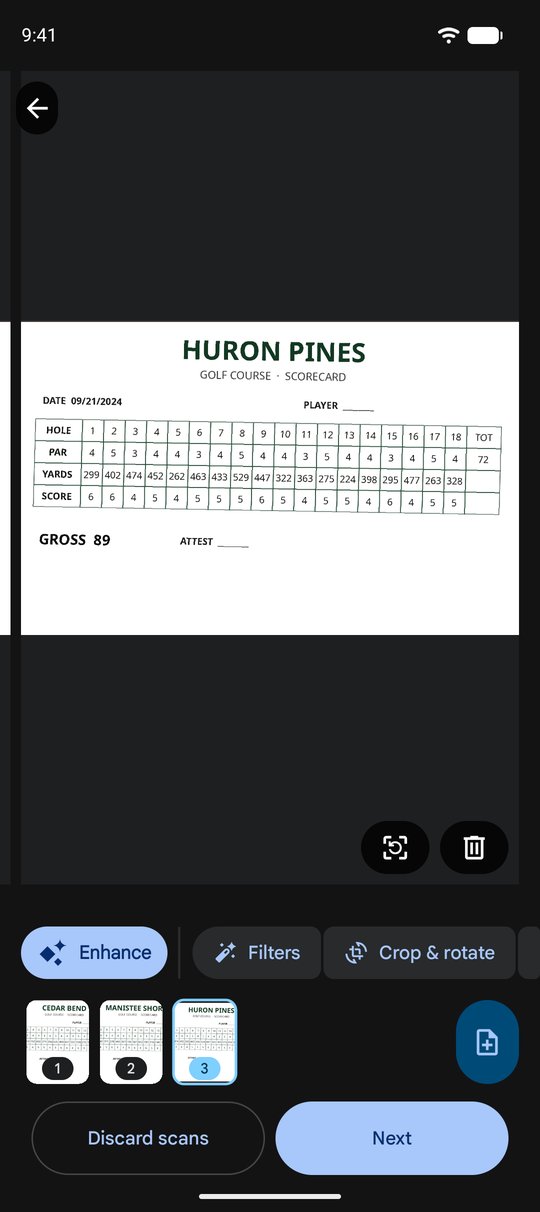
- Shoot the stack. The document scanner opens. Capture up to 20 cards in one session — lay each card flat in good light and it’s found, cropped and straightened for you. Already have photos of your cards? Tap the gallery button in the scanner and pick them instead. Tap Next when you’re done.
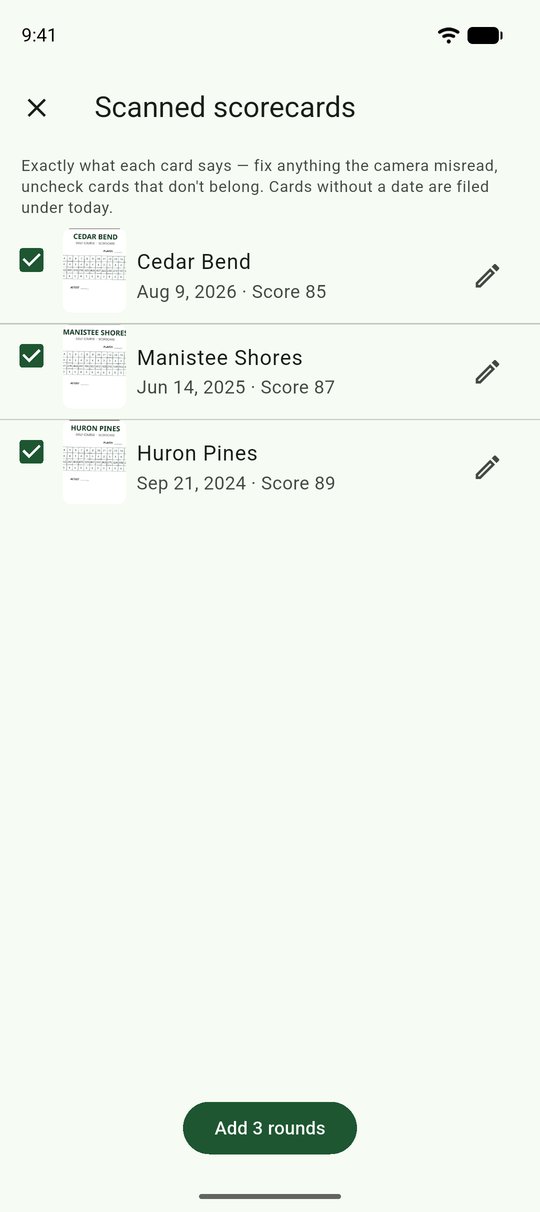
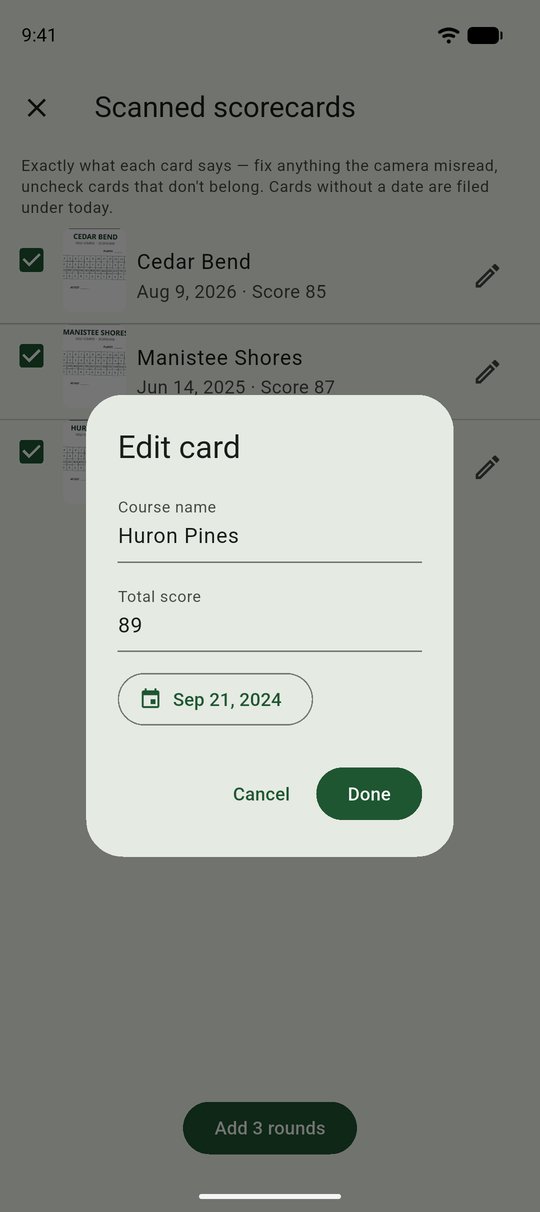
- Check what it read. Each card shows the course, date and score it found. Tap the pencil to fix anything the camera misread, and untick any card that doesn’t belong. A card with no readable date is filed under today, so check those.
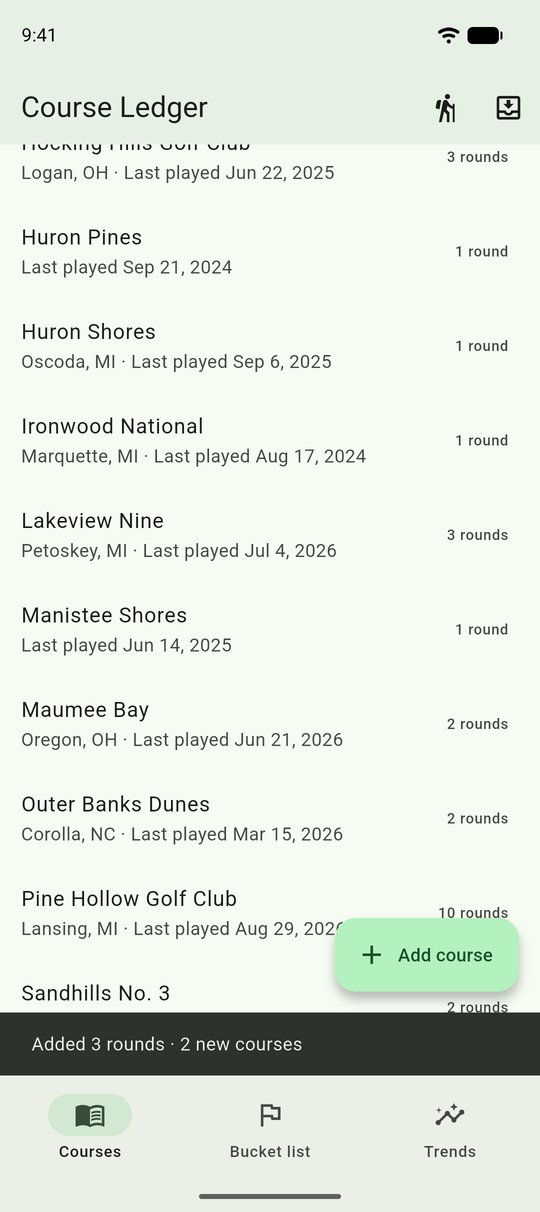
- Add them all. Tap Add N rounds. Cards for a course already in your ledger land on that course (matched by name, ignoring capitals); new courses are created by name — open them later to add the town and state. A card with no course name is skipped.
Cards are read by text recognition built into the app. No card image is uploaded anywhere. Scanned rounds are filed as 18-hole rounds and are never sent to Kick Rocks.
8. Importing a spreadsheet
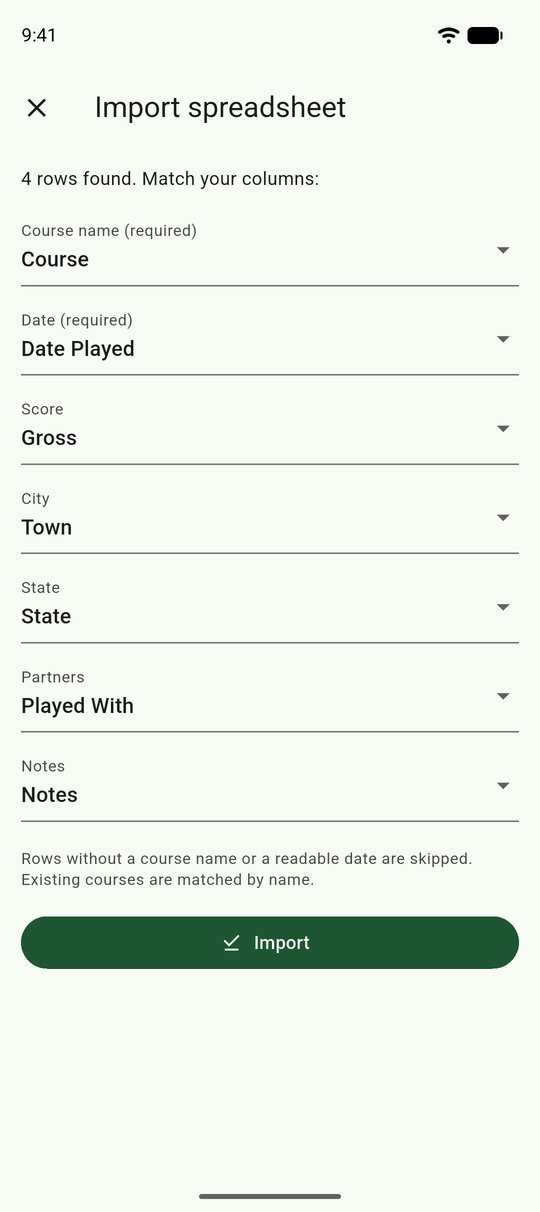
Choose Import a spreadsheet and pick a .csv file (in Google Sheets: File → Download → CSV). Course Ledger counts the rows and matches your columns from their headers — course name and date are required; score, city, state, partners and notes are optional. Headers like “Course”, “Date Played”, “Gross”, “Town” and “Played With” are recognised. Change any match it got wrong, then tap Import.
- Rows for a course already in your ledger are added to it (names are matched ignoring capitals).
- Rows without a course name or a readable date are skipped. Dates like
2024-07-13,7/13/2024andJul 13, 2024all work; numeric dates are read month-first. - Every row becomes a new round — importing the same file twice adds its rounds twice.
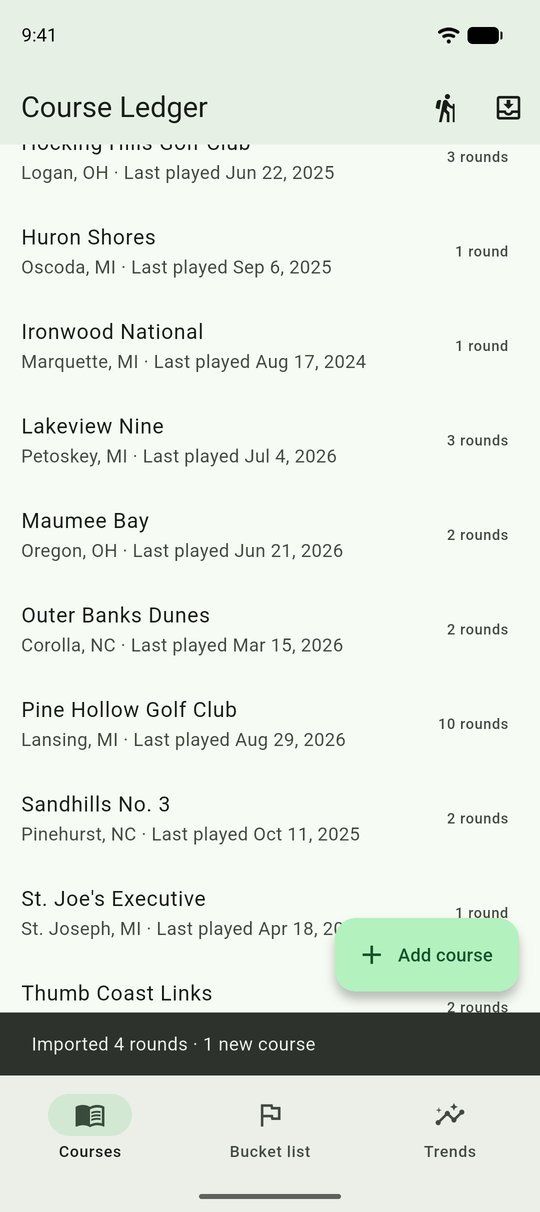
Rows for courses already in your ledger always import. New courses in the file count toward the 5-course free limit; rows past it are skipped and counted.
9. The bucket list
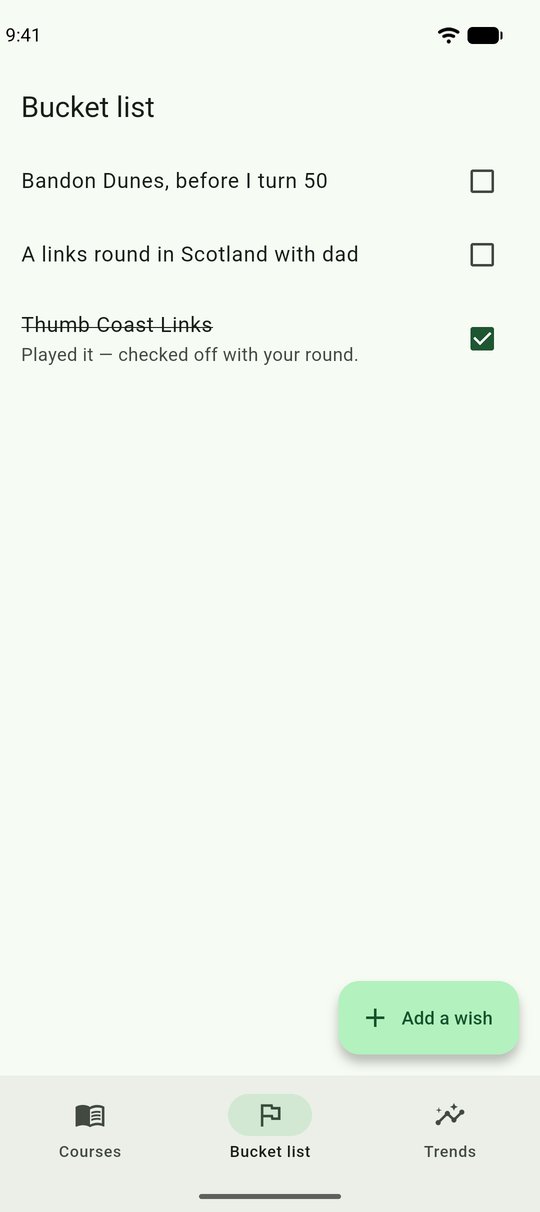
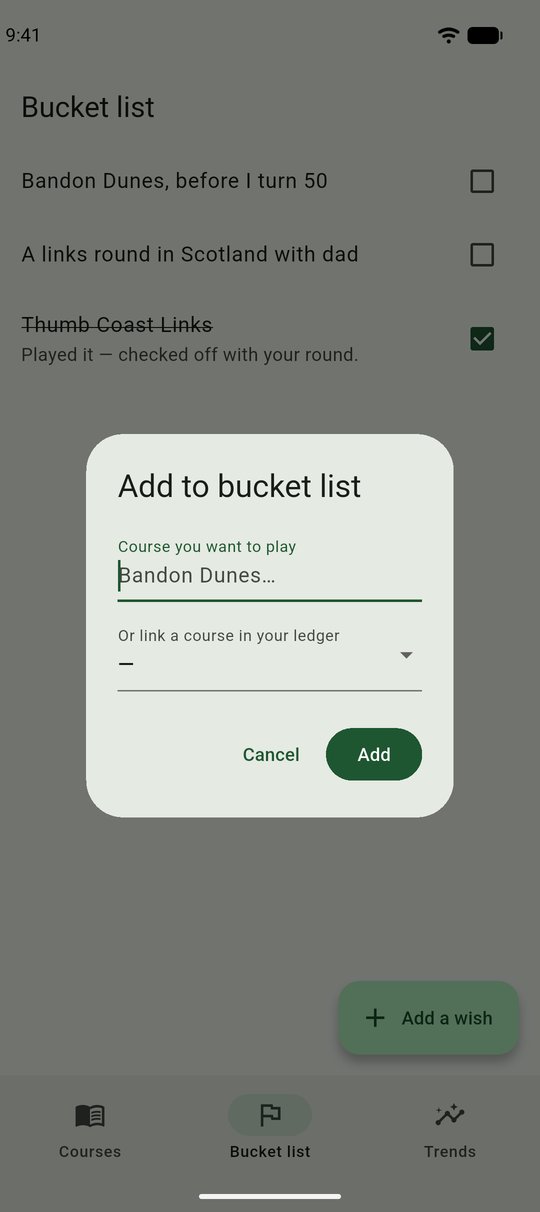
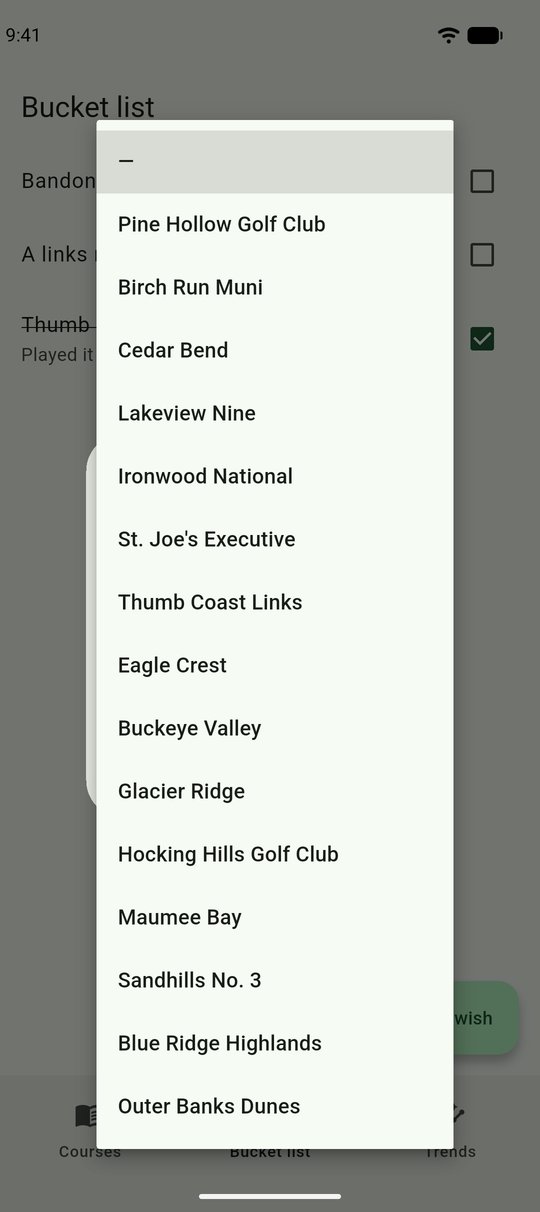
The courses you haven’t played yet. Tap Add a wish and either type a course (“Bandon Dunes, before I turn 50”) or choose one from Or link a course in your ledger.
- Linked wishes check themselves off the next time you log a round at that course — “Played it — checked off with your round.” Rounds from the shoebox and spreadsheet imports count too.
- Typed wishes are yours to tick when the day comes.
- Swipe a wish sideways to delete it.
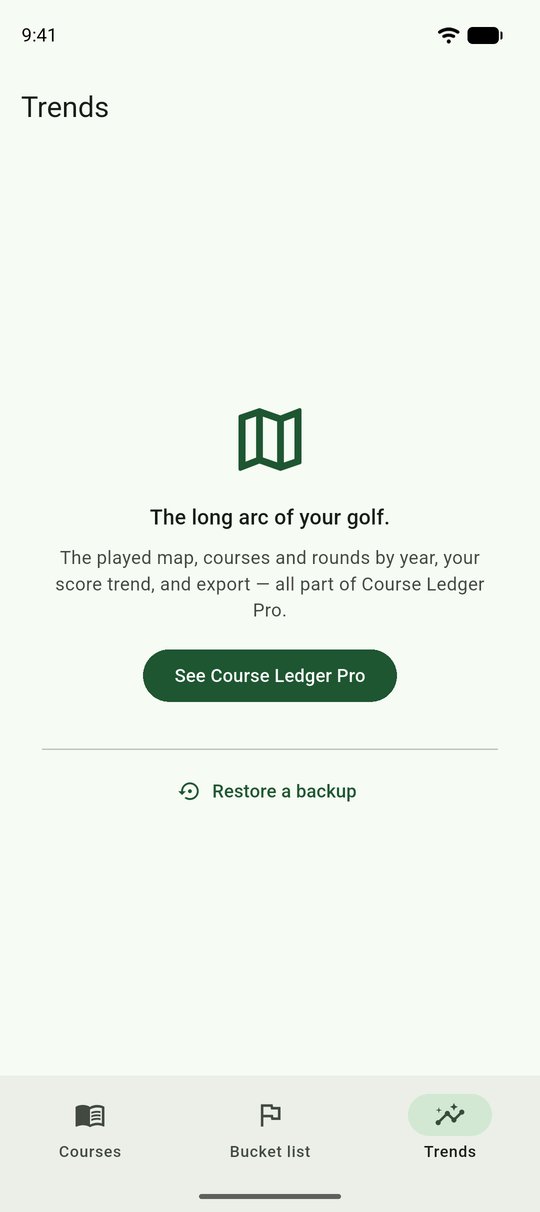
10. Trends & the played map Pro
The long arc of your golf:
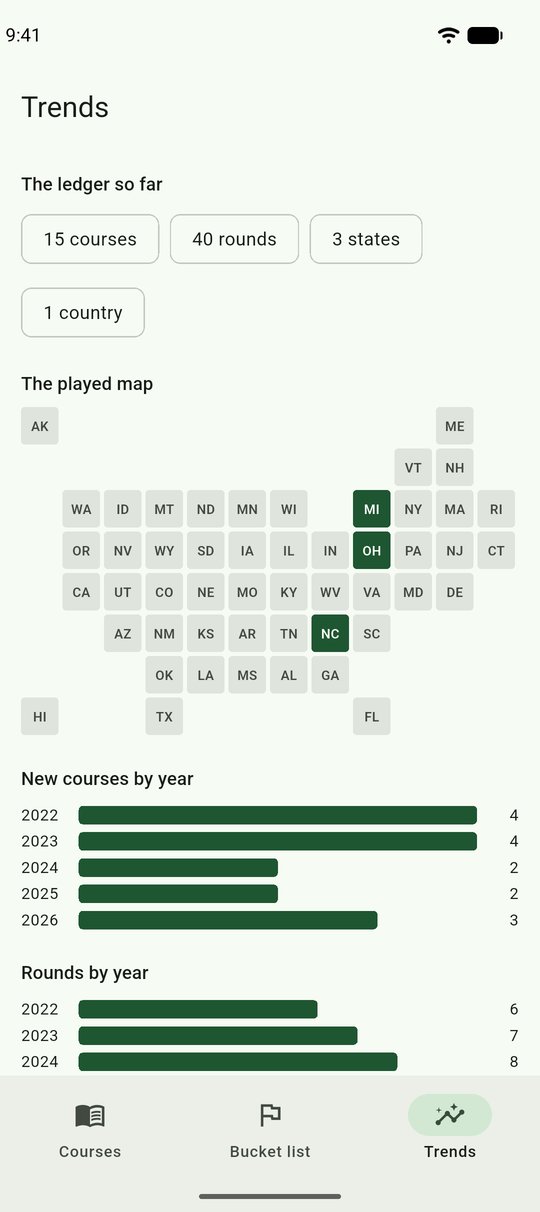
- The ledger so far — courses, rounds, states and countries.
- The played map — the 50 states and DC, with every state you’ve played filled in. A state fills in when a course there has that state’s two-letter code.
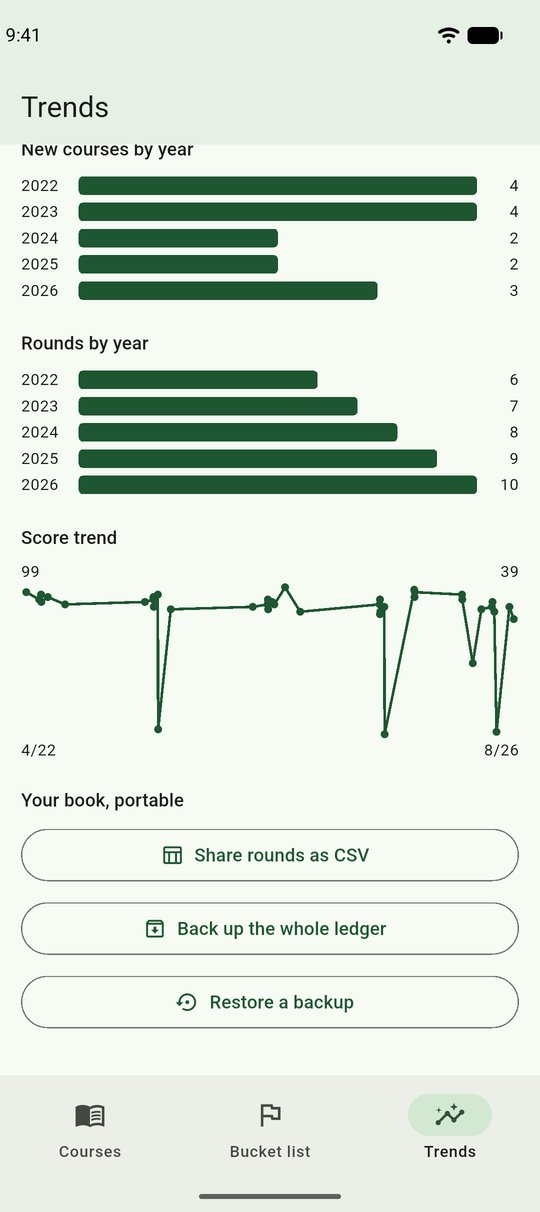
- New courses by year (by the year you first played each course) and rounds by year.
- Score trend — appears once you’ve logged five scored rounds. It plots every round with a score, 9-hole rounds included.
11. Export, backup & restore
At the bottom of Trends, under Your book, portable:
- Share rounds as CSV Pro — every round as a spreadsheet: course, city, state, country, date, score, holes, tees, walked or cart, partners, weather, rating and story.
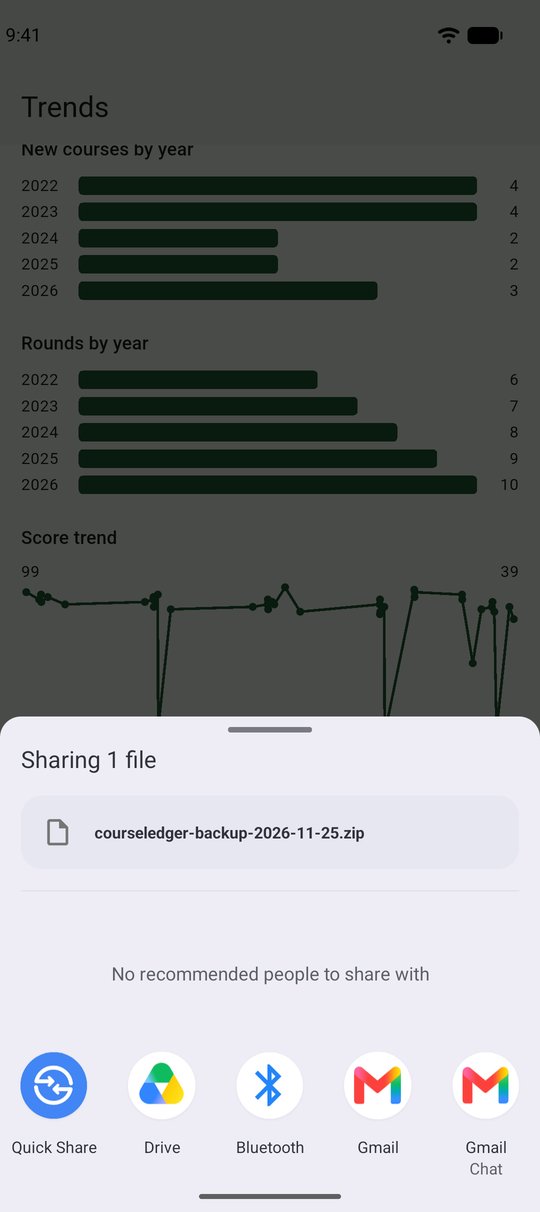
- Back up the whole ledger Pro — courses, rounds, bucket list and photos in one
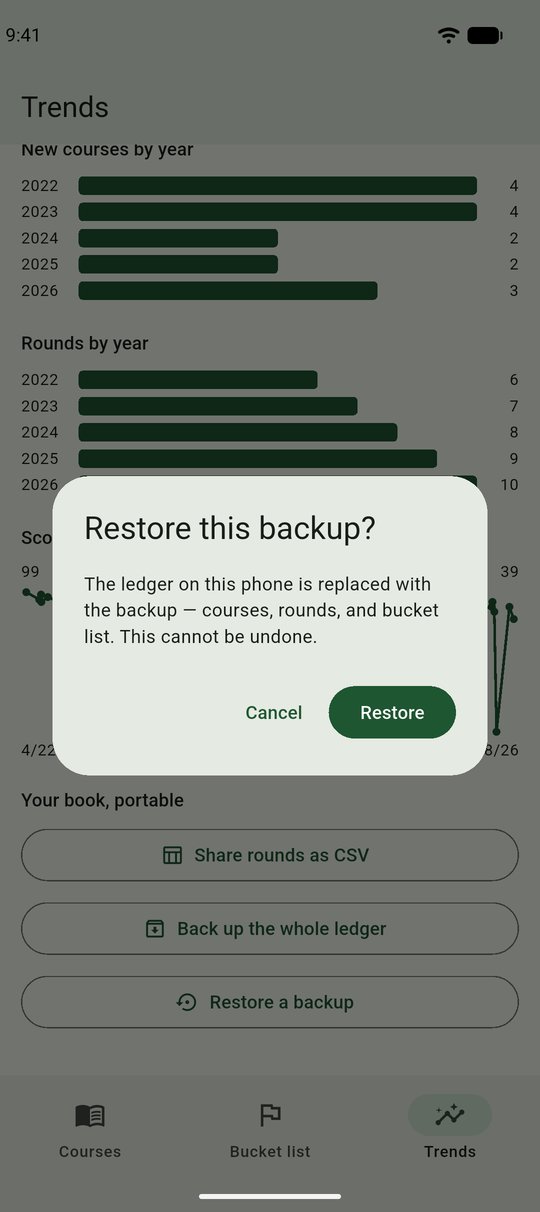
.zipfile (courseledger-backup-date.zip), sent wherever you choose through your phone’s share sheet: your own Drive, email, or another device. - Restore a backup — free for everyone. Pick a backup file and confirm; it replaces the ledger on this phone with the backup.
Course Ledger has no servers, so there’s no copy of your ledger anywhere but your phone and the backups you make. Uninstalling the app deletes its data — back up first.
12. Kick Rocks
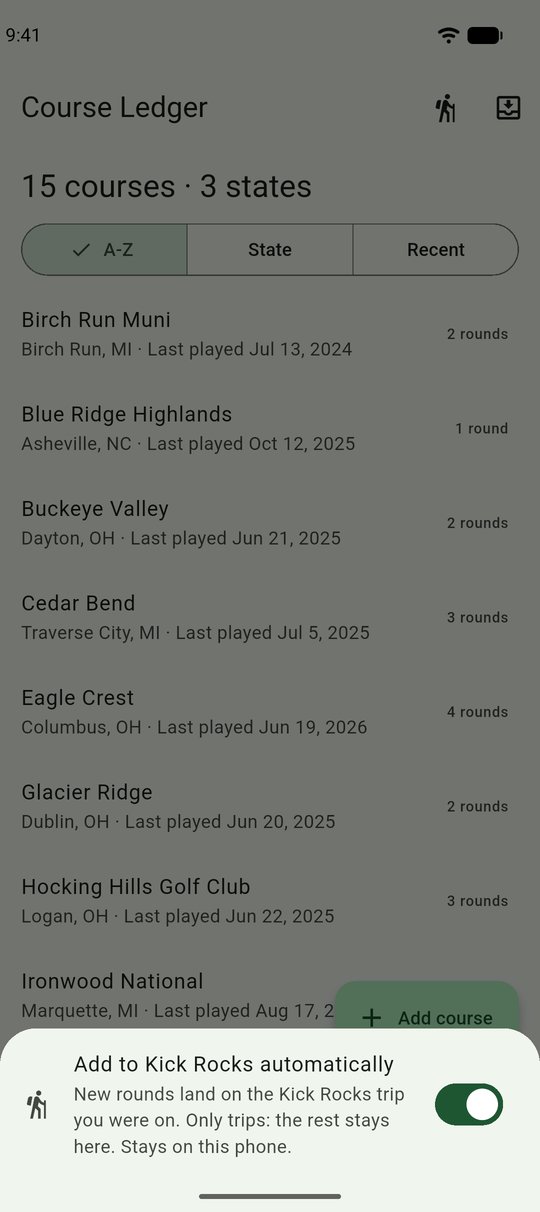
If you also use Kick Rocks, the Code Cowboys trip journal, a round you log during a trip appears on that trip as “played here”. The handoff happens on your phone, between the two apps.
- When Kick Rocks is installed, a hiker icon appears at the top of the Courses tab. Tap it for the Add to Kick Rocks automatically switch, which is on until you turn it off.
- Each round’s page gets a Send to Kick Rocks button (the same hiker icon) for sending one by hand — useful for an older round, or with the automatic switch off.
- Rounds from the shoebox and spreadsheet imports are never sent.
13. Dark mode
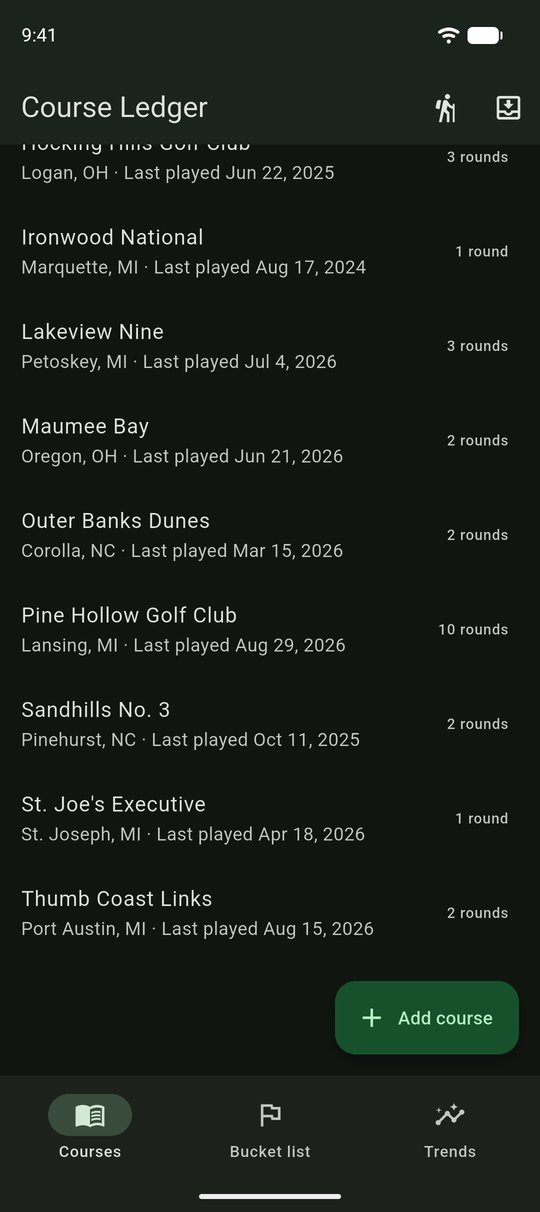
Course Ledger follows your phone’s dark theme setting — there’s no separate switch in the app. Turn on dark theme in your phone’s display settings and the ledger follows.
14. Free & Pro
| Free | Pro | |
|---|---|---|
| Courses | 5 | Unlimited |
| Rounds, stories, photos, bucket list | ✓ | ✓ |
| Spreadsheet import | ✓ | ✓ |
| Shoebox scorecard import | ✓ | |
| Trends & the played map | ✓ | |
| CSV export & full backup | ✓ | |
| Restore a backup | ✓ | ✓ |
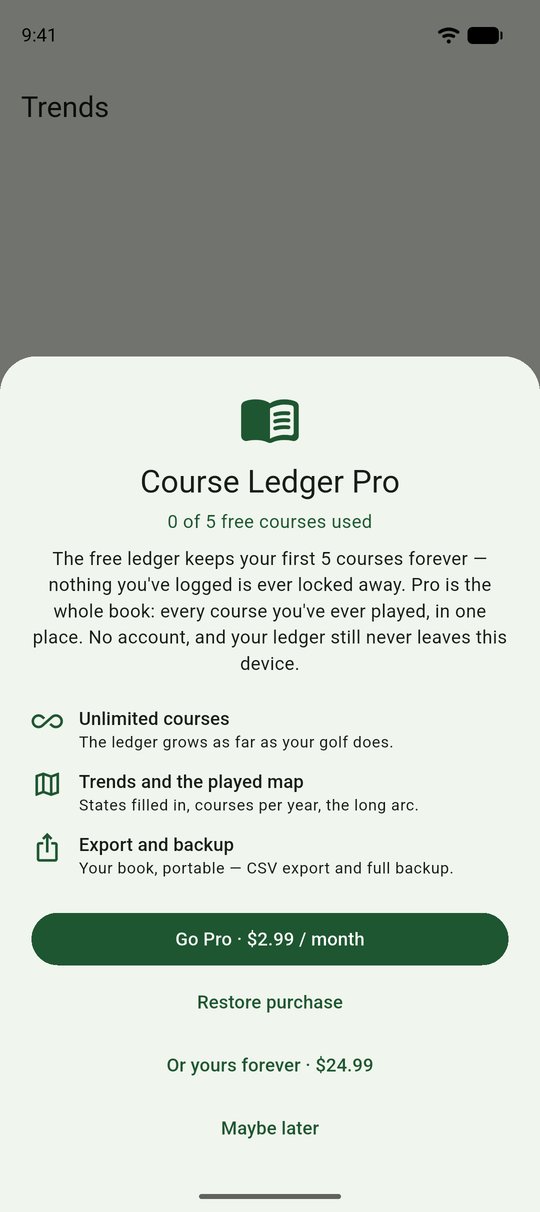
Pro is $2.99/month or $24.99 once for lifetime — the same features either way (prices in USD; the store shows your local price). The Pro sheet shows how many free courses you’ve used, and Restore purchase brings Pro back after a reinstall. The free limit counts courses you’ve added, so deleting one doesn’t free a slot — but nothing you’ve logged is ever locked.
15. How-tos
Get a course onto the played map
- Open the course from the Courses tab and tap the pencil.
- In State, type the two-letter code — OH, NC, MI. A spelled-out name won’t fill in a tile.
- Tap Save. The state fills in on Trends.
Courses created by the shoebox import have no town or state yet, so this is the first thing to do after a scan.
Log a round from years ago
- Open the course (add it first if it’s new) and tap Log a round.
- Tap the date and pick the day you played.
- Fill in what you remember — even just the story — and tap Save. First-played, last-played and best score update to match.
Got a lot of them? The shoebox import or a spreadsheet is faster.
Bring in a golf log you keep in a spreadsheet
- Make sure each row has at least a course name and a date. A header row helps the columns match themselves.
- Export it as CSV (Google Sheets: File → Download → CSV; Excel: Save As → CSV) and save it to your phone or your cloud drive.
- In Course Ledger, tap the tray icon → Import a spreadsheet, pick the file, check the column matches, and tap Import.
- Import each file once — importing it again adds the rounds a second time.
Move your ledger to a new phone
- On the old phone, open Trends → Back up the whole ledger (Pro) and send the
.zipsomewhere the new phone can reach — your Google Drive, or email it to yourself. - On the new phone, install Course Ledger and save the backup file to the phone (for example, to Downloads).
- Open Trends → Restore a backup (free), pick the file, and tap Restore.
- To bring Pro across, open the Pro sheet and tap Restore purchase while signed into the same Google account.
Back up right before you switch — anything logged after the backup was made won’t be in it.
Stop rounds going to Kick Rocks
- On the Courses tab, tap the hiker icon at the top.
- Turn off Add to Kick Rocks automatically.
You can still send any round by hand with Send to Kick Rocks on its page.
Make a bucket-list course check itself off
- Add the course to your ledger first (Add course) — it can sit there unplayed, marked “Not played yet”. On the free tier it counts toward your five courses.
- On the Bucket list tab, tap Add a wish and choose it under Or link a course in your ledger.
- The day you log a round there, the wish is ticked with that round attached.